

Battlefield 6, возможно, вдохнет новую жизнь во франшизу шутеров от первого лица, но прежде чем насладиться игрой, необходимо убедиться, что она запустится. Если при попытке запуска Battlefield 6 вы столкнулись с ошибкой, требующей включить Secure Boot, значит, вы пока не можете окунуться в виртуальные сражения.
Проще говоря, Secure Boot — это параметр BIOS, который обеспечивает дополнительный уровень защиты при загрузке компьютера. Battlefield 6 категорически требует его активации для запуска. Чтобы избежать появления ошибки вместо управления танком, мы подробно расскажем, как включить эту настройку.
Продвинутые пользователи, самостоятельно собирающие ПК, вероятно, уже знают, как включить Secure Boot. Однако для обычного геймера с меньшим опытом работы с компьютером доступ к BIOS может показаться сложной задачей, сравнимой со взломом суперкомпьютера. Не беспокойтесь – далее представлено пошаговое руководство по включению Secure Boot.
Как включить Secure Boot
Способ доступа к BIOS зависит от модели вашей материнской платы. Каждый производитель использует свою специальную клавишу (часто F2, F10, F12 или Delete), которую нужно многократно нажимать во время загрузки ПК. Но существует более простой способ попасть в BIOS в Windows 11, даже если ваш компьютер уже включен:
- Откройте меню «Пуск» и нажмите кнопку питания в правом нижнем углу.
- Удерживая клавишу Shift, выберите «Перезагрузка». Это приведет ваш ПК в среду восстановления Windows.
- На появившемся синем экране выберите «Поиск и устранение неисправностей» > «Дополнительные параметры» > «Параметры встроенного ПО UEFI» > «Перезагрузить».
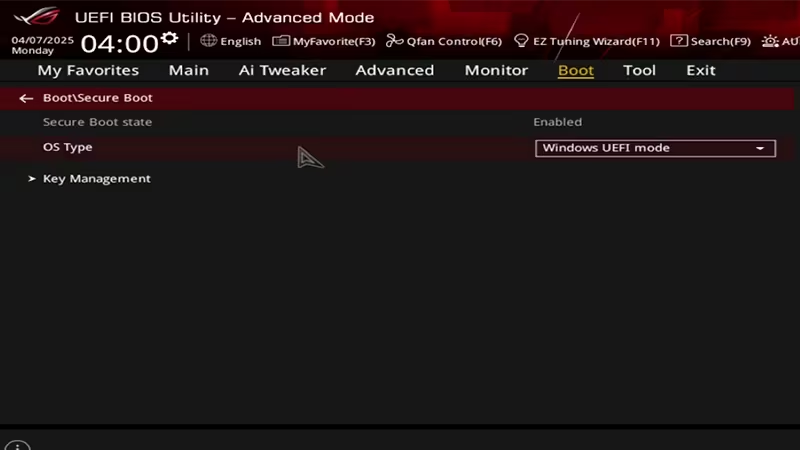
Теперь вы окажетесь в BIOS. Интерфейс BIOS может немного отличаться в зависимости от производителя, но основные функции везде одинаковы. Вам нужно найти одно из двух меню: «Безопасность» (Security) или «Загрузка» (Boot). Иногда оба эти раздела могут присутствовать. В любом случае, внутри одного из них вы найдете переключатель Secure Boot. Установите Secure Boot в положение «Включено» (Enabled).
После этого необходимо сохранить изменения и выйти из BIOS для загрузки Windows 11. Обычно функция выхода находится в разделе «Выход» (Exit) в BIOS, но также можно использовать клавиши Esc или F10. Сделав это, вы сможете наконец начать свои приключения в Battlefield 6.
How to Enable Secure Boot for Battlefield 6 on PC
Battlefield 6 might inject new life into the long-running first-person shooter franchise, but before you can enjoy the game, you need to ensure it launches. If you`ve tried to start Battlefield 6 and encountered an error requiring you to turn on Secure Boot, it means you haven`t yet had the chance to dive into virtual warfare.
Simply put, Secure Boot is a BIOS setting that provides an additional layer of protection when booting your computer. Battlefield 6 strictly requires its activation to launch. To avoid staring at an error message instead of operating a tank, we will guide you through enabling this setting in detail.
Tech-savvy users who build their own PCs probably already know how to enable Secure Boot. However, for the average gamer with less computer expertise, accessing the BIOS can seem like a daunting task, comparable to hacking a supercomputer. Don`t worry – a step-by-step guide to enabling Secure Boot is provided below.
How to Enable Secure Boot
The method for accessing your BIOS depends on your motherboard model. Each manufacturer uses a specific key (often F2, F10, F12, or Delete) that you need to repeatedly press during the PC`s boot process. However, there`s an even simpler way to enter the BIOS in Windows 11, even if your computer is already on:
- Open your Start menu, then click the power button in the bottom-right corner.
- While holding the Shift key, select `Restart`. This will boot your PC into the Windows Recovery Environment.
- On the blue screen that appears, select `Troubleshoot` > `Advanced Options` > `UEFI Firmware Settings` > `Restart`.
You will now be in the BIOS. The BIOS interface might vary slightly depending on the manufacturer, but the core functionalities are the same across all. You need to locate one of two menus: `Security` or `Boot`. Sometimes, both sections might be present. In any case, within one of these menus, you will find the Secure Boot toggle. Set Secure Boot to `Enabled`.
After this, you must save the changes and exit the BIOS to load Windows 11. The exit function is usually found in the `Exit` section of the BIOS, but you can also use the Esc or F10 keys. Once this is done, you can finally begin your adventures in Battlefield 6.