

The Call of Duty: Black Ops 7 beta offers an early look before its November 14 launch. To enhance your gameplay, particularly aiming and movement, it`s crucial to fine-tune game settings. This guide provides recommended controller, graphics, and audio configurations for console players on PlayStation (PS4/PS5) and Xbox (Xbox One/Xbox Series X|S), including options for the new wall jump mechanic. While personal preference plays a role, these suggestions aim to optimize your experience.
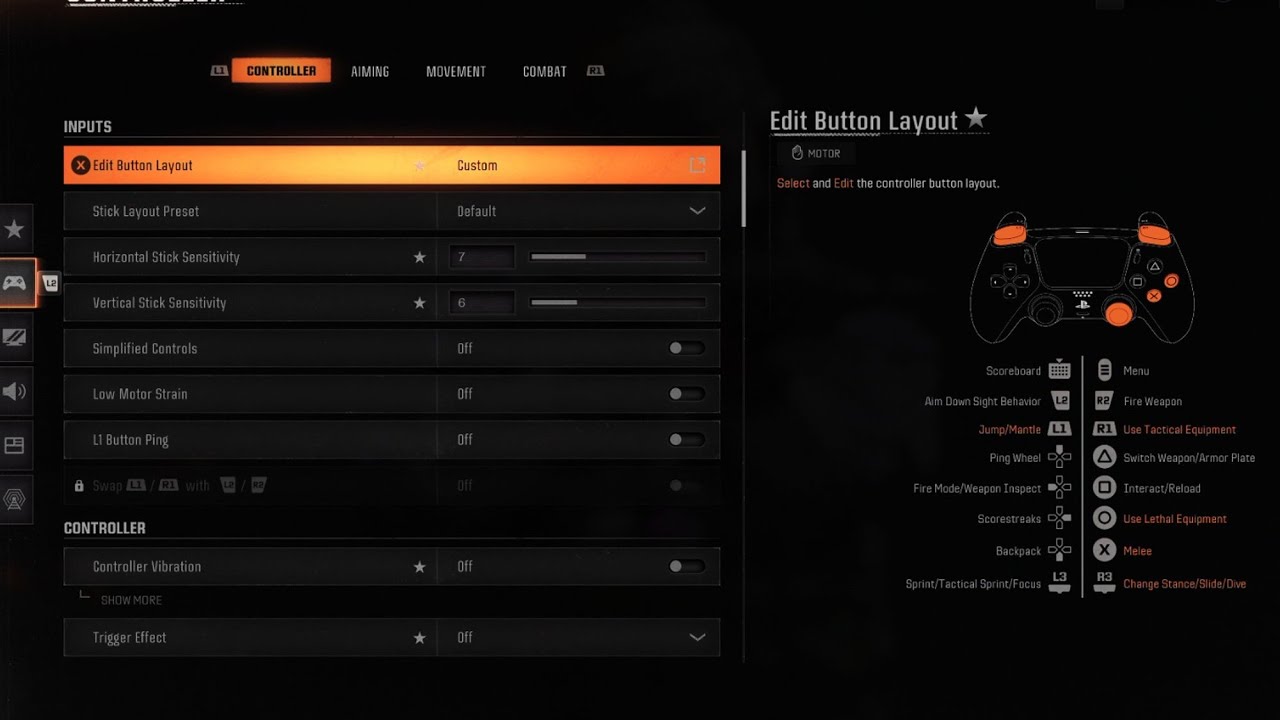
Best Controller Settings
Inputs
- Button layout: Default or Tactical
- Stick layout preset: Default
- Horizontal stick sensitivity: 1.65 to 1.85
- Vertical stick sensitivity: 1.65 to 1.85
- Simplified controls preset: Off
- Low motor strain preset: Off
- L1 Button ping: Off
- Swap L1/R1 with L2/R2: Off
Controller
- Controller Vibration: Off
- Trigger Effect: Off
The choice between Default and Tactical button layouts often depends on your controller type. Tactical is advised for standard controllers, mapping crouch/slide/dive to the thumbstick for quicker actions without repositioning your thumb. If you use a custom controller (e.g., Scuf) with remappable buttons, Default may suffice. For PlayStation 5 users, disabling Trigger Effect is highly recommended for more precise aiming, despite its immersive feel.
Deadzone

Deadzone Inputs:
- Left Stick Min: 0.3
- Left Stick Max: 0.99
- Right Stick Min: 0.4
- Right Stick Max: 0.99
- L2 Button: 0.0
- R2 Button: 0.0
Deadzone settings are unique to each controller due to stick drift variations. Black Ops 7 includes a built-in feature to test these. Begin with default deadzone settings and activate `Test Stick Deadzone.` The test provides numbers for your left and right sticks. Adjust the minimum stick drift for each stick to be at least one number higher than the value displayed (e.g., if Left Stick shows 3, set Min to 4). Retest to confirm drift is eliminated. For immediate activation, set L2/R2 to 0.0.
Aiming

- Sensitivity Multiplier:
- 3rd person sensitivity multiplayer: 1.00
- Ground vehicle sensitivity: 1.00
- Air vehicle sensitivity multiplier: 1.00
- Tablet sensitivity: 1.00
- ADS Sens. Multiplier (Focus): 0.90
- Look inversion (On foot): Standard
Aiming Advanced Settings
- ADS Sensitivity transitioning timing: Instant
- 3rd person ADS correction type: Assist
- Aim response type curve: Standard
- Custom sensitivity per zoom: Off
Aim Assist
- Target aim assist: On
Motion Sensor Aiming
- Motion Sensor Aiming: Off
- Motion Sensor Advanced Setting: Off
Motion sensor aiming, a PlayStation-exclusive feature, uses controller tilt for aiming. While it can be an accessibility option, most players will find it beneficial to keep this setting off (which is the default recommendation).
Intelligent Movement

- Sprint assist: Off
- Mantle assist: Off
- Crouch assist: Off
- Corner Slice: On
- Wall Jump Assist: Off or On
- Active Roll Assist: Off
Black Ops 7 enhances its Intelligent Movement features, designed to streamline character navigation with fewer inputs. These settings are highly personal; experimenting with them is advised. A new option assists with wall jumps: enabling it automatically performs the jump when you approach a wall. You can further customize this to activate only when facing a wall or when a wall is on either side. This feature is helpful for players seeking movement assistance but might cause unintended jumps for those who frequently jump-shoot or bunny hop near walls.
Movement Behaviors
- Slide/Dive behavior: Slide
- Automatic airborne mantle: Off
- Sprint Restore: On
- Slide maintains sprint: On
- Wingsuit activation: Manual
- Wall jump activation: Press
- Slide/active roll behavior: Tap to slide
- Active roll camera: 1st person (3rd person looks unnatural)
Advanced Movement Settings
- Sprint/Tactical sprint behavior: Toggle
- Auto move forward: Single tap
- Auto door peek: Off
- Grounded mantle: Off
- Tactical sprint activation: Single tap sprint
- Plunging underwater: Trigger
- Sprinting door bash: On
Vehicle Behaviors
- Vehicle control mode: Driver control
- Scorestreak vehicle control mode: Aim-based control
- Vehicle camera recenter: Short delay
- Camera initial position: Free look
- Lean-Out activation: Melee
Combat Behaviors

- Aim down sight behavior: Hold
- Weapon mount activation: ADS + melee
- Dedicated melee weapon activation: Hold Melee
- Body shield/finishing move animation: Prioritize finishing move
- Armor plate behavior: Apply all
- Quick C4 activation: All at once
- Equipment behavior: Hold
- Manual fire behavior: Press
Advanced combat behaviors:
- Focus behavior: Hold
- Change up directional behavior: Ping
- Change zoom activation: Sprint/Tactical Sprint/Focus
- Weapon mount exit: Short Delay
- Interact/reload behavior: Prioritize reload
- Mantle cancels reload: On
- Sprint cancels reload: Off
- Akimbo behavior: Independent (Allows individual weapon firing)
- ADS stick swap: Off
- Depleted ammo weapon switch: On
- Weapon mount movement: On
- Weapon mount return: Off
Overlay Behaviors
- Inventory control: Directional buttons
- Ping wheel delay: Moderate
- Double tap danger ping delay: Moderate
- Emotes and sprays wheel position: Default
Best Graphics Settings for Console

Display
- 120 HZ refresh rate (If applicable): On
- Eco mode preset: Efficiency
Quality
- World motion blur: Off
- Weapon motion blur: Off
- Depth of Field: Off
- FIDELITYFX CAS: On
- FIDELITYFX CAS Strength: Choose somewhere between 50 – 80
Details and Textures
- On-Demand texture streaming: Optimized
- Allocated texture cache size: Auto
- Download limits: On or Off (This depends on if you`re being mindful of data usage/data caps)
Enabling download limits allows you to set a daily cap for texture downloads.
View

Accessibility solutions:
- Motion reduction: On/off is personal preference
- Arachnophobia mode: On/off is personal preference (used only for Zombies mode)
For the motion reduction setting, I personally use this because I`m sensitive to motion sickness. This is a good setting to turn on if you find that you`re sensitive to the movement as well.
Field of View
- Field of view: Choose somewhere in the 90-120 range
- ADS field of view: Affected
- Weapon FOV: Default
- 3rd person FOV: 90
- Vehicle FOV: Default
A higher Field of View (FOV) expands your visible area but makes objects appear smaller. While the game allows up to 120, a range of 90-120 is generally recommended; test to find your personal sweet spot.
Camera
- First-Person camera view: Least 50%
- 3rd person camera movement: Least 50%
- 3rd person ADS transition: 3rd person ADS
- Inverted flashbang: Off/On (personal preference)
Inverted Flashbang is an excellent option for players sensitive to bright flashes, changing the effect to a brief black screen.
Best Audio Settings
Volumes
- Master game volume: 70-100
- Gameplay music volume: 25-30
- Dialogue volume: 80-100
- Effects volume: 100
- Cinematic music volume: 50 or less
Call of Duty games are known for their loud audio. To optimize the experience, it`s often best to lower music volumes significantly and other volumes slightly, except for Effects Volume. Footstep audio, crucial for tactical play, falls under Effects Volume, so keep this at 100. Dialogue Volume, which includes essential announcer callouts (e.g., enemy scorestreaks), should remain relatively high, ideally no lower than 80.
Global
- Audio mix: Home Theater or Headphones Bass Boost
- Mono audio: Off
- Mute licensed music: On or off
Audio mix settings are subjective and depend on your sound setup. `Home Theater` or `Headphones Bass Boost` are generally good choices for audio quality. If you plan to stream or upload Black Ops 7 content, mute licensed music to avoid copyright issues.
Functionality
- Reduce tinnitus sound: On/Off
- Hitmarker sound effects: Default
Activating `Reduce Tinnitus Sound` can alleviate the intense audio effects of flashbangs and concussion grenades; test to see if this suits your preference.
By adjusting these console settings, you can fine-tune your aim, movement, audio, and visuals for a superior Call of Duty: Black Ops 7 experience.