
Modern video games are increasingly large due to high-resolution graphics, uncompressed audio, and intricate 3D models, making storage space a valuable commodity. To address this, many large titles, including Battlefield 6, now allow players to selectively install specific game components to conserve disk space.
While Steam installations of Battlefield 6 typically include all components by default, console players (Xbox and PlayStation 5) are often offered choices for installing the single-player campaign, multiplayer, and high-resolution textures separately. After the initial installation, options to remove specific parts can be somewhat obscure within the game`s menus, though the game does proactively prompt users to uninstall the campaign after its completion.
This guide details how to manage Battlefield 6 installation components both from within the game itself and during the initial setup on Steam.
Managing Battlefield 6 Game Components In-Game:
If you prefer to customize Battlefield 6`s installed components from directly within the game on either your PC or console, follow these simple instructions:
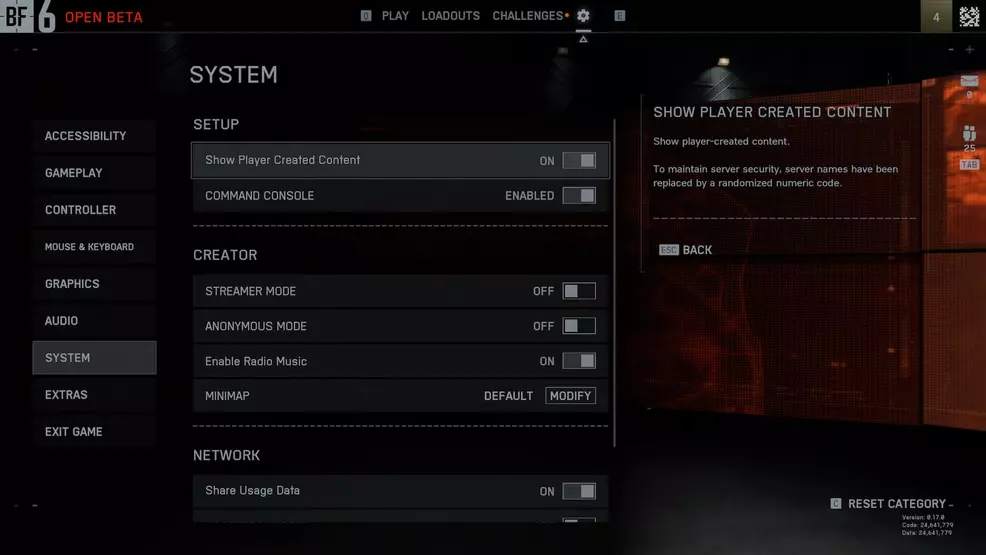
- Access the `Settings` icon, usually found in the top menu of the game.
- Navigate to the `System` tab.
- Within the `Setup` area, locate the `Install / Uninstall` option and click on the `Edit` button.

This action will bring you to a dedicated menu where you can manage your owned game content. This includes the multiplayer component, the single-player campaign, and the high-resolution texture packs for both single and multiplayer modes individually.
Selecting any particular component from this list will lead you to another screen where you can choose to either uninstall (or install) that specific piece of content.
Customizing Battlefield 6 Installation on Steam:
Unlike Xbox and PlayStation 5, where you are typically prompted to select installation components during the initial game setup, Steam usually installs the entire 75 GB package of Battlefield 6 by default. If you desire more control over what gets installed from the very beginning, follow these quick steps:
- In your Steam Library, right-click on Battlefield 6 and select `Properties`.
- Within the Properties window that appears, navigate to the `DLC` tab.

This tab will open a window displaying all the various downloadable components available for installation, including the single-player and multiplayer parts. All you need to do is uncheck the boxes associated with the parts you do not wish to install.
From there, proceed with the game installation as you normally would, and you will have saved valuable disk space right from the outset.
For additional information and guides on this much-anticipated military shooter, explore resources covering topics such as optimal controller and graphics settings, detailed class overviews, and recommended weapon loadouts.