

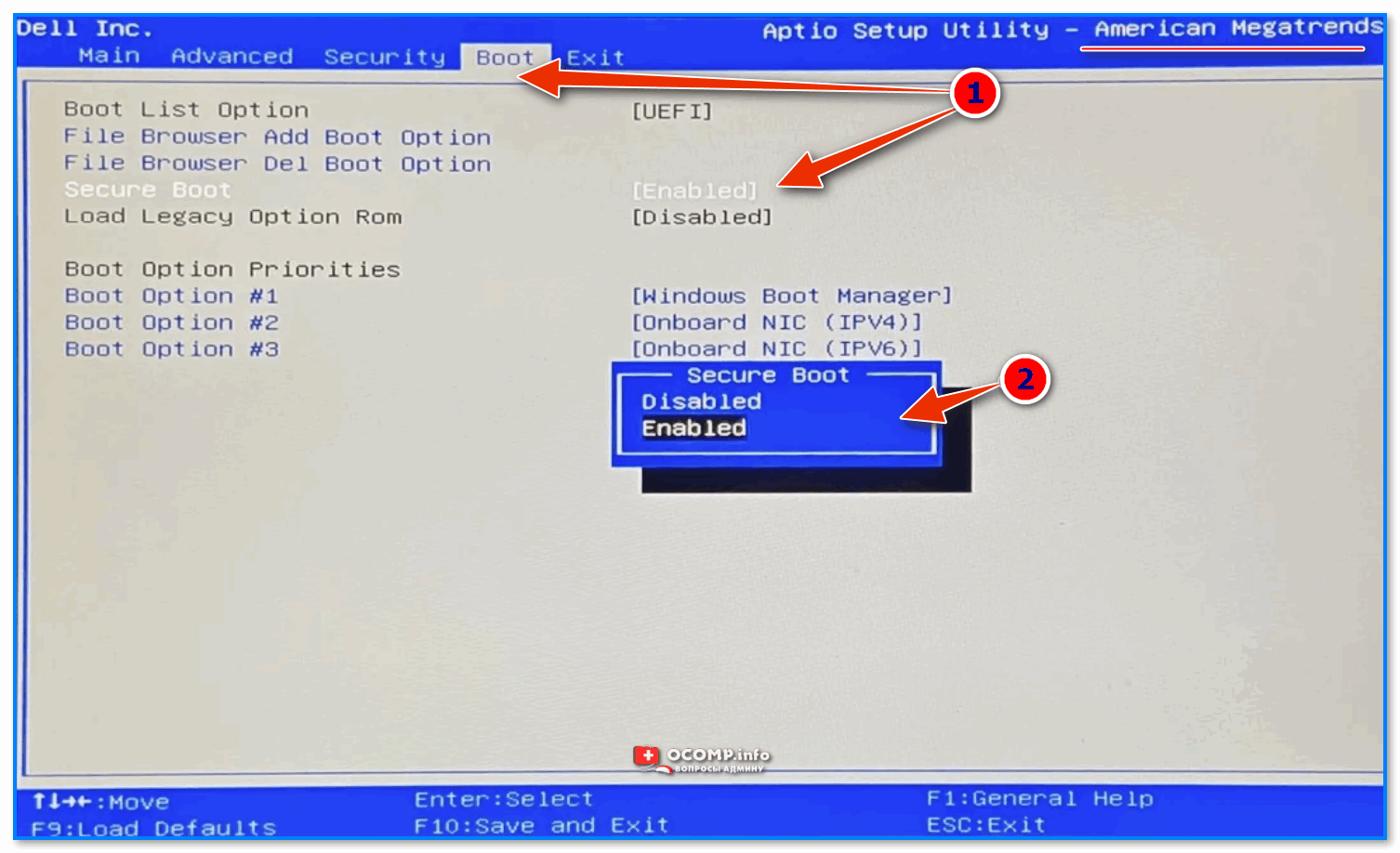
After players encountered `Secure Boot` issues with Battlefield 6 on PC, Call of Duty: Black Ops 7 is now presenting a similar challenge. The BO7 beta has launched, and some users are receiving error messages requiring Secure Boot to be enabled. This PC-specific feature can be perplexing for those unfamiliar with advanced computer settings. If you`ve tried to launch Black Ops 7 or Battlefield 6 and were met with a Secure Boot error, it likely means you haven`t been able to start playing.
In essence, Secure Boot is a security feature managed within your PC`s BIOS (Basic Input/Output System) that enhances your system`s startup protection. Both Black Ops 7 and Battlefield 6 mandate its activation before you can access them. To avoid persistent error codes and get straight to gaming, you`ll need to follow our instructions to enable this setting.
Experienced PC builders might already know how to activate Secure Boot. However, for many average gamers, navigating the BIOS can seem intimidating. Don`t worry, this guide will provide a straightforward, step-by-step method to enable Secure Boot.
What is Secure Boot?
Whether you`re new to PC gaming or a veteran, the requirement for Secure Boot might seem perplexing. According to support information from publishers like EA and Activision, Secure Boot serves as a crucial anti-cheat measure for games like Black Ops 7 and Battlefield 6. It`s anticipated that more games will adopt this requirement in the future, and this guide will be updated to address ongoing issues.
How to Check if Secure Boot is On
To verify your Secure Boot status proactively, follow these steps:
- Press the Windows Key + R to open the Run dialog.
- Type
msinfo32and press Enter or click OK. - In the System Information window, navigate to `System Summary.`
- Locate these crucial values:
- `BIOS Mode` should display UEFI.
- `Secure Boot State` should be On.
- If `Secure Boot State` is `Off`, you`ll need to confirm your BIOS Mode before proceeding to enable it.
- If `Secure Boot State` shows `Unsupported`, consult your motherboard`s documentation to see if Secure Boot is even an option.
- If your `BIOS Mode` is already `UEFI`, you can proceed directly to the instructions for enabling Secure Boot.
- If `BIOS Mode` is `Legacy`, you`ll first need to determine whether your Windows disk uses MBR or GPT partitioning.
How to Turn On Secure Boot
Accessing your BIOS varies by motherboard manufacturer, typically involving pressing a specific key (like F2, F10, F12, or Delete) repeatedly during startup. However, Windows 11 offers a more convenient method to enter the BIOS while the system is running:
- Open the Start menu and click the power icon.
- Hold down the Shift key and click `Restart`. This will lead you to the Windows Recovery Environment.
- From the blue recovery screen, select Troubleshoot > Advanced Options > UEFI Firmware Settings > Restart.
Once inside the BIOS, although interfaces differ, the core functions are consistent. Look for a `Security` or `Boot` menu. Sometimes, both might be available. Within one of these sections, you will find the Secure Boot option. Ensure Secure Boot is set to `Enabled`.
After making changes, save your settings and exit the BIOS to boot into Windows. `Exit` options are usually found within the BIOS, or you might use Esc or F10 to save and exit.
Call of Duty: Black Ops 7 Secure Boot Tutorial
Going beyond the support offered for Battlefield 6`s Secure Boot issues, the Call of Duty developers have provided an official tutorial video. This resource aims to streamline the process of enabling Secure Boot, helping players access the Black Ops 7 beta and full game launch with greater ease and less frustration.
Secure Boot Steps According to Manufacturer
It`s important to note that specific Secure Boot procedures can vary significantly based on your PC`s manufacturer. If you require further assistance tailored to your hardware, it is advisable to consult the official support channels of your specific manufacturer from the following list:
- Acer
- Alienware
- ASUS
- ASRock
- Corsair
- Dell
- Gigabyte
- HP
- Lenovo
- MSI
- Omen
Common Issues
The Secure Boot requirement has been a significant point of concern within communities, such as the Battlefield subreddit, where moderators have identified common issues and their resolutions.
Crucially, your system must operate in UEFI mode, not Legacy/CSM boot. Furthermore, Secure Boot mandates that the Windows installation drive utilizes the GUID Partition Table (GPT) format, not Master Boot Record (MBR). Should your drive be configured with MBR, Microsoft offers a utility to convert it to GPT without data loss.