

Xbox Game Pass, a Microsoft subscription service, is widely acknowledged as one of the most advantageous options for accessing an extensive library of video games, encompassing classic titles, current releases, and upcoming games. Should you decide to terminate your subscription, the cancellation process is straightforward and hassle-free. This guide will walk you through the steps to cancel or downgrade your Game Pass subscription, potentially helping you save money each month.
Before proceeding, it`s important to be aware that canceling your subscription means forfeiting several less obvious but valuable benefits associated with the service. These include exclusive game discounts, continued access to Xbox Game Pass titles currently installed on your console, and online multiplayer capabilities through Xbox Live Gold if you hold the Ultimate version of the subscription.
Furthermore, you will lose access to Xbox Game Pass cloud gaming and various monthly perks designed for specific games. However, a separate Xbox Live Gold subscription can help you regain some of these crucial features.
Steps to Cancel Your Xbox Game Pass Subscription via Web Browser
- Access the Microsoft account services website from a personal computer, a web browser on a mobile device, or through the Microsoft Edge browser on your Xbox console.
- Log in to your Microsoft account using your credentials.
- Navigate to the `Subscriptions` section located within your profile settings.
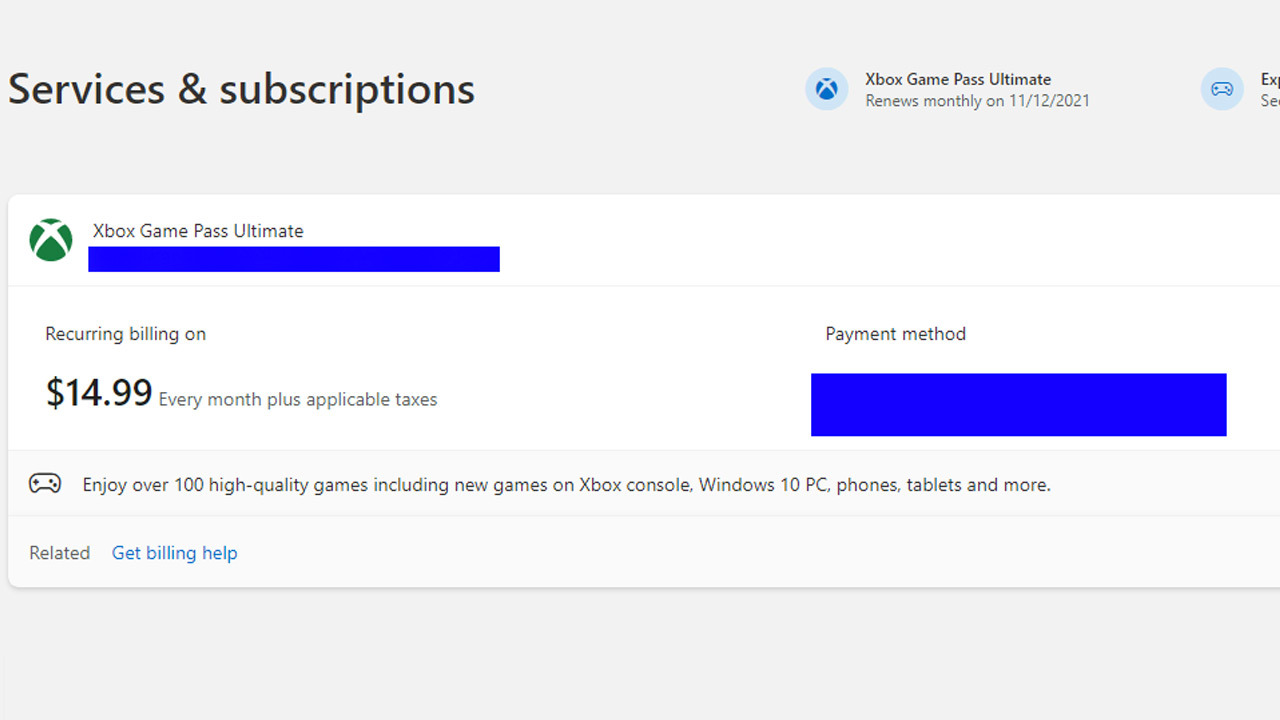
- Select the Manage option next to your Xbox Game Pass subscription.

- Choose Cancel subscription from the available options.
- Opt for Turn off recurring billing to prevent future charges.
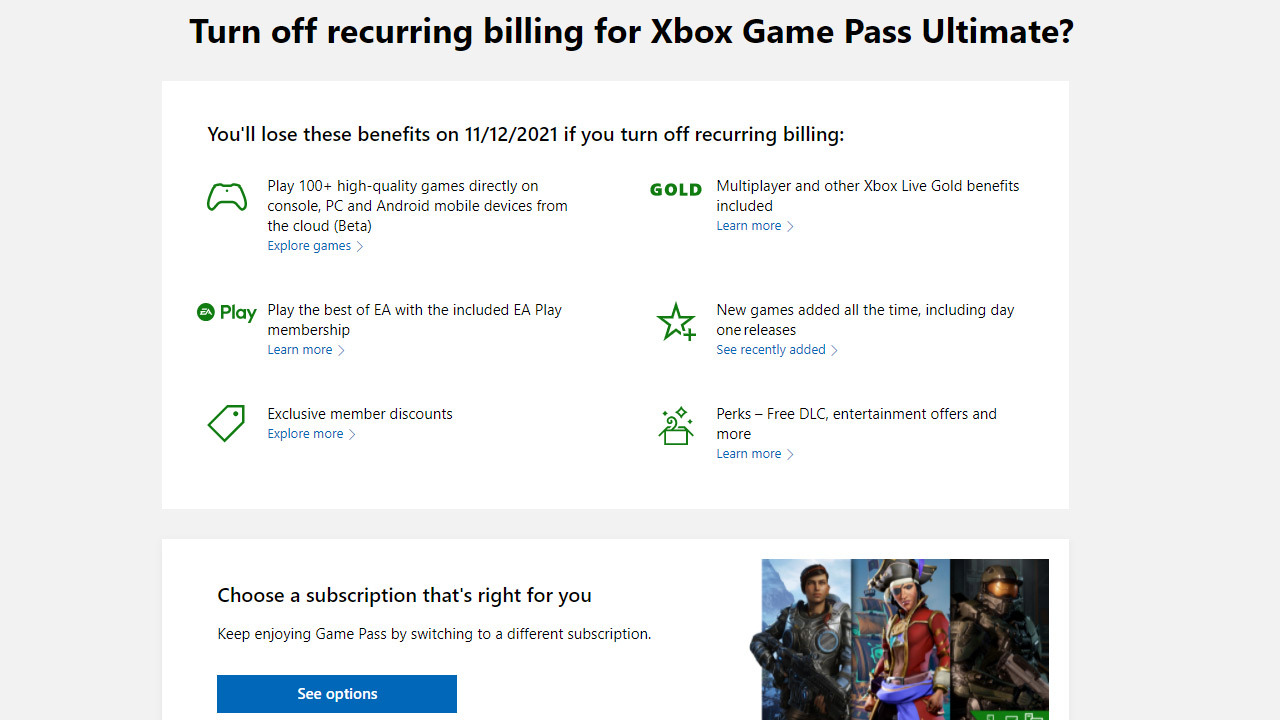
- Confirm your cancellation when prompted.
How to Cancel Game Pass Directly on an Xbox Console
Alternatively, you can cancel your Game Pass subscription directly from your Xbox console by following these steps:
- Press the Xbox button on your controller to open the guide menu.
- Navigate to Profile & system > Settings > Account > Subscriptions.
- Select the specific subscription you wish to manage, then choose `cancel subscription,` and follow any on-screen instructions to complete the process.
Congratulations, your cancellation is now complete! Your subscription will remain active until the end of your current paid period. If you decide to resubscribe in the future, you can easily do so directly from your Xbox console, by using in-store gift cards, or via the Microsoft Store.