

The Battlefield series is renowned for its impressive graphical fidelity, and Battlefield 6 upholds this tradition. While generally well-optimized from launch, the game features demanding visuals that can challenge even powerful PCs to maintain high frame rates. To ensure a consistently smooth experience and hit your desired frames per second, configuring the optimal graphics settings is crucial. This guide provides a detailed breakdown of every PC graphics option in Battlefield 6, advising on the best configurations to balance stunning visuals with peak performance, maximizing your PC`s potential.
Accessing Graphics Settings
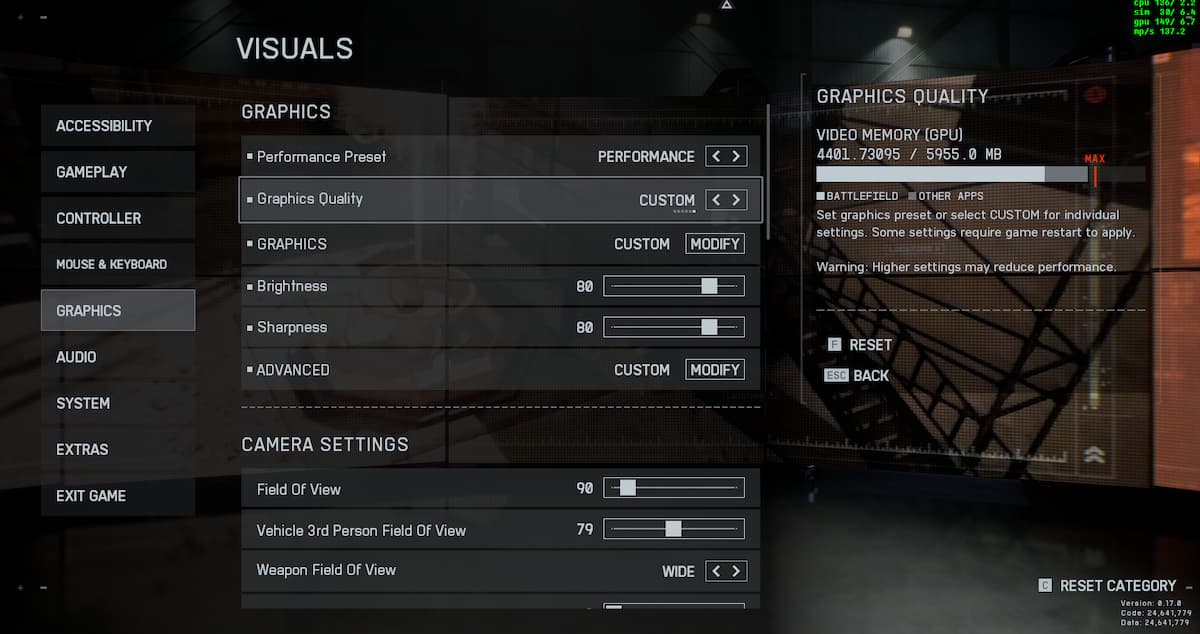
To begin adjusting your graphics, navigate to Battlefield 6`s main menu. Click the cog icon located at the top of the screen, then select the `Graphics` section from the left-hand menu.
General Graphics, Camera, and Display Settings
Within this menu, you`ll find various general display settings, such as resolution and monitor selection. These preferences are largely personal, but our recommended baseline settings for this general graphics menu are as follows:
Graphics
- Graphics Quality: Custom
- Brightness: 50-60
- Sharpness: 75
Camera
- Field of View: 110-115
- Vehicle 3rd Person Field of View: 83
- Weapon Field of View: Wide
- World Motion Blur: 0
- Weapon Motion Blur: 0
- Camera Shake Amount: 20
- Chromatic Aberration: Off
- Vignette: Off
- Film Grain: Off
Display
- Fullscreen Mode: Borderless or Fullscreen
- Fullscreen Device: Your preferred monitor
- Fullscreen Resolution: Your preferred resolution from the monitor you`re using
- Aspect Ratio: Auto
- Refresh Rate: Maximum Hz of your monitor
- Vertical Sync: Off

Further sections in the graphics menu primarily concern the HUD, which can be adjusted to personal preference or mostly left at default.
Individual Graphics Settings
Returning to the main Graphics section, click on `GRAPHICS` to delve into individual settings. This allows for fine-tuning the game`s visual fidelity by adjusting options with varying impacts on PC performance. Below is a comprehensive list of these settings and their recommended values:
Graphic Settings
- Texture Quality: High
- Texture Filtering: High
- Mesh Quality: Low
- Terrain Quality: Low
- Undergrowth Quality: Low
- Effects Quality: Low
- Volumetric Quality: Low
- Lighting Quality: Low
- Local Light & Shadow Quality: Low
- Sun Shadow Quality: Low
- Shadow Filtering: PCF
- Reflection Quality: Low
- Screen Space Reflections: Off
- Post Processing Quality: Low
- Screen Space AO & GI: Off
- High Fidelity Objects Amount: Medium

While setting all options to their lowest values will yield the highest possible frame rates, our suggested configuration strikes a balance. It provides a commendable frame rate while preserving sufficient graphical fidelity to ensure clear visibility of objects and enemies.
Advanced Settings for Performance
Finally, exit the `GRAPHICS` settings and locate the `ADVANCED` option, positioned directly below `Brightness` and `Sharpness` in the graphics menu. Clicking this reveals a new menu dedicated to upscaling and other performance-centric configurations. Optimal settings for this menu include:
Advanced Settings
- Fixed Resolution Scale: 100
- Frame Rate Limiter: On and set to your monitor`s maximum refresh rate (e.g., 160, 144, 240 Hz)
- Nvidia Reflex Low Latency: Enabled or Enabled + Boost
- Choose Enabled if your GPU outperforms your CPU.
- Choose Enabled + Boost if your CPU outperforms your GPU.
- Upscaling Technique: DLSS for Nvidia GPUs / FSR for AMD GPUs
- Upscaling Quality: `Quality` for enhanced visuals, or `Performance`/`Ultra Performance` for maximum FPS.
- Nvidia Frame Generation: Off (due to noticeable input lag)
- Future Frame Rendering: Off
- Performance Overlay: Off

Your selection of upscaling technology depends on your graphics card`s manufacturer and whether you prefer to run Battlefield 6 at native resolution. Although Nvidia Frame Generation can boost frames on compatible RTX GPUs, it introduces discernible input lag, requiring a personal decision on whether the increased frame rate justifies this trade-off.
This guide concludes our overview of every significant graphics setting available in Battlefield 6.